Linux Password reset guide in case if you lost access to machine. Good for RHCSA Exam
Correct method to reset Password with/without SELinux
- Mash
F8command while booting up the machine, to open “grum menu”; - In the Grub, press “e” to edit the boot entry options;
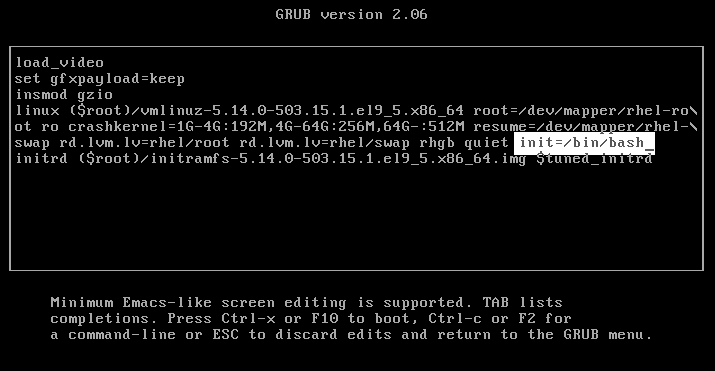
- At the end of the “linux” line, add
init=/bin/bash; mount -o remount,rw /- remounts system directory torw;/sbin/getenforce- Because our $PATH variable is not loaded, we must check SELinux status by providing absolute path to the binary.ls -Z /etc/shadow- Print SELinux parameters for shadow file (note it down);passwd root- change password;- After password change you can see
/etc/shadowwithls -Z /etc/shadowand it will have?mark where policies should be. System won’t boot if SELinux is enabled chcon system_u:object_r:shadow_t:s0 /etc/shadow- restore policies for the fileexec /sbin/init- will replace current bash process with PID 1 with the actual systemd init process, which will boot system normally without the need of reboot
Password reset can be also achieved with rd.break parameter in the boot entry options, but in some RHEL versions it was not a working solution.
Additionally restoring SELinux policies with .autorelabel is possible, but it will need two reboots:
- One for systemd init to see this
.autorelabel - Second to start whole system relabeling process for only one important file